Install and first run
- Download it from the download section: Apple Silicon or Intel for a Mac (macOS 12 or later), or Windows 10 or later. Not sure which Mac you have? Apple menu ▸ About This Mac: an “Apple M” chip means Apple Silicon.
- Open it. The Mac version is signed and notarised, so it opens with a double-click. The Windows beta isn't signed yet: SmartScreen warns once, so choose More info, then Run anyway.
- Start the free month. The first time it opens, enter your email and choose Start the month. The month runs from then, not from the download, and everything is switched on.
- Tell it where downloads land. The welcome cards ask first. It's usually your Downloads folder or your record pool app's download folder. You can change it any time by clicking the folder path at the top of the window, or in Settings (⌘,).
- Give the number keys folders. Press a number with no folder behind it and a folder picker opens. The key is named after the folder you pick. Fill as many as you like, and add more later.
That's the setup. The first track loads but doesn't play: opening the app shouldn't put sound in the room. Press Space to begin.
↑ TopThe loop
The whole app is one loop: hear it, file it, next.
- A track plays. It starts 30% of the way in, because intros tell you nothing. With Skip the breakdown on (the default), it checks that point and moves it if it would land in a quiet section.
- You listen for as long as you need. The waveform is coloured by frequency, so the drop is visible before you reach it. Click it to jump. → and ← scrub 15 seconds, and holding ⇧ scrubs 30.
- You press a number. The track goes into that folder and the next one plays straight away. It was loaded while you listened.
- Not sure? M sends it to Maybe, S skips it and leaves it where it is, ⌫ moves it to the Soundboy Trash. ⌘Z undoes any of them.
You never wait on the disk. The queue moves on when you press the key, and the file is moved in the background. If a move fails, the track goes back in the queue and the status line says why.
↑ TopWhat's on screen
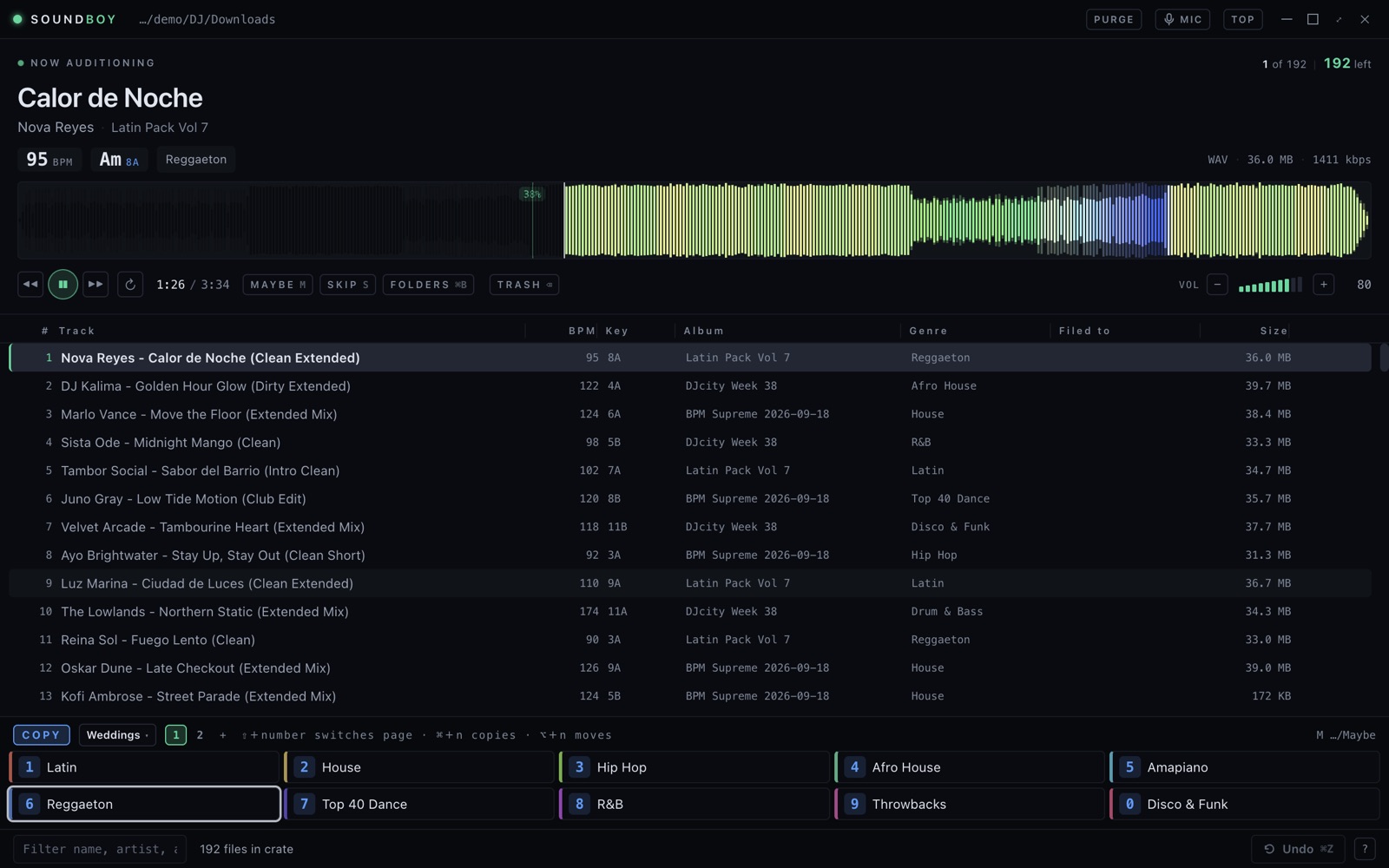
- Title strip: the folder being sorted (click it to change folder), and switches for Purge mode, the microphone (voice mode) and always-on-top. Double-click the strip to fill the screen.
- Now auditioning: title and artist from the tags, or the filename if there are none. BPM, key in both notations (like Em 9A), genre, format and size. A DUPE? badge names the folder that already holds a copy, and clicking it shows that file.
- Waveform: warm colours are bass and cool colours are treble. The played part is bright. Click anywhere to jump.
- Transport row: play, restart, Maybe, Skip, the folder shelf, Trash and volume.
- Queue: every track in the folder, oldest download first. Filed tracks stay in the list, crossed out and labelled with where they went, so undo has somewhere to land. Click a column heading to sort. ⌘F filters by name, artist, album or genre, and the box shows a green ring while it has your typing.
- Keys: the ten folders on the number keys, with a count of how many you've filed to each this session, plus the page tabs. A glowing key is a suggestion (see Filing).
- Status line: what just happened, with an Undo button, and ? for the cheat sheet.
Every key
Press ? in the app for the same list. While the cheat sheet or Settings is open, filing keys do nothing, so a stray 4 can't file a track you can't see.
Filing
| Key | Does |
|---|---|
| 1…9, 0 | File into the folder on that key |
| ⌘ + number | Copy, just this once |
| ⌥ + number | Move, just this once |
| ⏎ | File into the glowing key: a copy already lives there, or this genre usually goes there |
| ⇧1…⇧6 | Switch to page 1–6 (⌃ works too) |
| ⇧7 | Auto page: your ten most-used folders, busiest first |
| M | Send to the Maybe folder |
| ⌫ | Move to the Soundboy Trash (Purge, in Purge mode) |
| ⇧P | Purge mode on or off for this folder |
| K | Purge mode: keep it where it is (a skip otherwise) |
| ⌘Z / ⌘⇧Z | Undo / redo |
| V | Voice mode on or off (Mac) |
Playing
| Key | Does |
|---|---|
| Space | Play / pause |
| → / ← | Jump forward / back (15 seconds unless you change it) |
| ⇧→ / ⇧← | Jump further (30 seconds unless you change it) |
| ⇧↑ / ⇧↓ | Volume up / down |
| R | Back to the start point |
| C | Continuous play on or off |
| Click the waveform | Jump there |
Getting around
| Key | Does |
|---|---|
| ↑ / ↓ | Previous / next track ([ and ] too) |
| S | Skip: leave the file where it is and move on |
| ⇧S | Go back through the tracks you skipped |
| ⌘B | Folder shelf, and back to the queue |
| ⌘F | Filter the queue |
| ⌘R | Rescan the folder |
| ⌘P | Next profile |
| ⌘, | Settings |
| ? | Cheat sheet |
| Esc | Close whatever is open, or clear the filter |
| ⌃⌘F | Full screen |
With the window in the background
For a Stream Deck, a macro pad or Keyboard Maestro. Turn on Work without focusing the window in Settings ▸ Remotes (it's on by default). A normal keyboard can't type these keys, so no other app loses a shortcut.
| Send | Does |
|---|---|
| F13…F21 | File into keys 1–9 on the current page |
| ⇧F13 | File into key 0 |
| ⇧F14 / ⇧F15 | Maybe / Trash |
| ⇧F16 / ⇧F17 / ⇧F18 | Play-pause / Skip / Undo |
| ⌃F13…⌃F18 | Switch to page 1–6 |
| ⌃F19 | Auto page |
Filing
Copy or move
Settings ▸ Keys ▸ What a number key does. Copy leaves the original where it was, and new installs start on Copy. Move takes it out of the download folder. The keys are tinted to match: blue for copy, amber for move. Hold ⌘ or ⌥ with a number to do the other one for just that track.
Pages and profiles
A page is the next ten folders in the same setup. There can be up to six. Add one with the + beside the page tabs, and switch with ⇧1–⇧6.
A profile is a whole different setup, such as Weddings, Club or Latin Night, each with its own keys, pages and Maybe folder. Switch with ⌘P or the picker beside the keys. Duplicate a profile to start a new one from a working set. Duplicate warnings follow the profile you're in.
Maybe and Trash
M sends a track to your Maybe folder (set it in Settings ▸ Keys). ⌫ moves it to Soundboy Trash in your home folder, or to /Soundboy Trash at the top of your Dropbox. It's never deleted: it's an ordinary folder you can open, empty or pull files out of whenever you like. ⌘Z brings a trashed track back.
Undo
⌘Z reverses the last action: a moved or trashed file goes back where it was, and a copy is removed. It remembers the last fifty, and ⌘⇧Z redoes. If something else has taken the file's old name since, undo stops and tells you rather than overwrite it.
When the name is already taken
| Situation | What happens |
|---|---|
| Same name, different size | Saved as Track (2).mp3, and the status line says so |
| Same name, same size | It asks first, as it's probably the same track. S skips it, K keeps both |
A move to another drive is copied, checked, and only then removed from the download folder.
Suggestions and the auto page
A key glows when a copy of the song already lives in that folder, or when tracks of that genre usually go there. ⏎ files into the glowing key. Nothing is filed until you press it, and the keys never move.
⇧7 opens the auto page: your ten most-used folders on the number keys, busiest first.
The folder shelf
⌘B swaps the queue for every folder in your library. Search it and click a folder to file into it. Tell it where your library lives in Settings ▸ Folders: up to four top folders, and the shelf lists folders up to two levels inside them.
Double-presses
A stuttered double-press files one track, not two. Holding a key down doesn't repeat it.
↑ TopBefore and after a crate
Before you start
When a new batch lands, a Before you start card says how many tracks are already in your library and which came in more than one version, so you know what's worth your ears before the first track plays.
DUPE?
A track that matches one already in your folders shows DUPE? with the folder's name. Matching ignores accents, leading track numbers, “&” versus “and”, punctuation and bracketed extras. It does know the difference between clean and dirty, and extended and radio edit, so keeping both of a pair doesn't set it off. The question mark is honest: it's a guess from the name, so it warns and never blocks.
Exact copies
Tracks that are byte-for-byte copies of files you've already filed get offered as one sweep: Trash N or Not now. There's nothing in them to audition. Undo brings them back.
Skipped tracks
S leaves a track in the download folder and moves on. The number skipped stays on screen, and ⇧S takes you back through them.
Crate cleared
The last track ends on Crate cleared: what was filed, skipped and trashed, and how many went into each folder. Rescan from there if more has arrived.
Pace
The header shows tracks sorted, seconds each, tracks per hour and time left. The seconds-each figure is a median, so one long break doesn't skew it.
The log
Every filing is recorded, one line each, in a daily file on your disk (Help ▸ open the session log folder). It notes where every file went and when.
↑ TopPurge mode
For a folder you've already sorted that has grown too big. Nothing is filed anywhere: each track is kept where it is or purged to the Soundboy Trash.
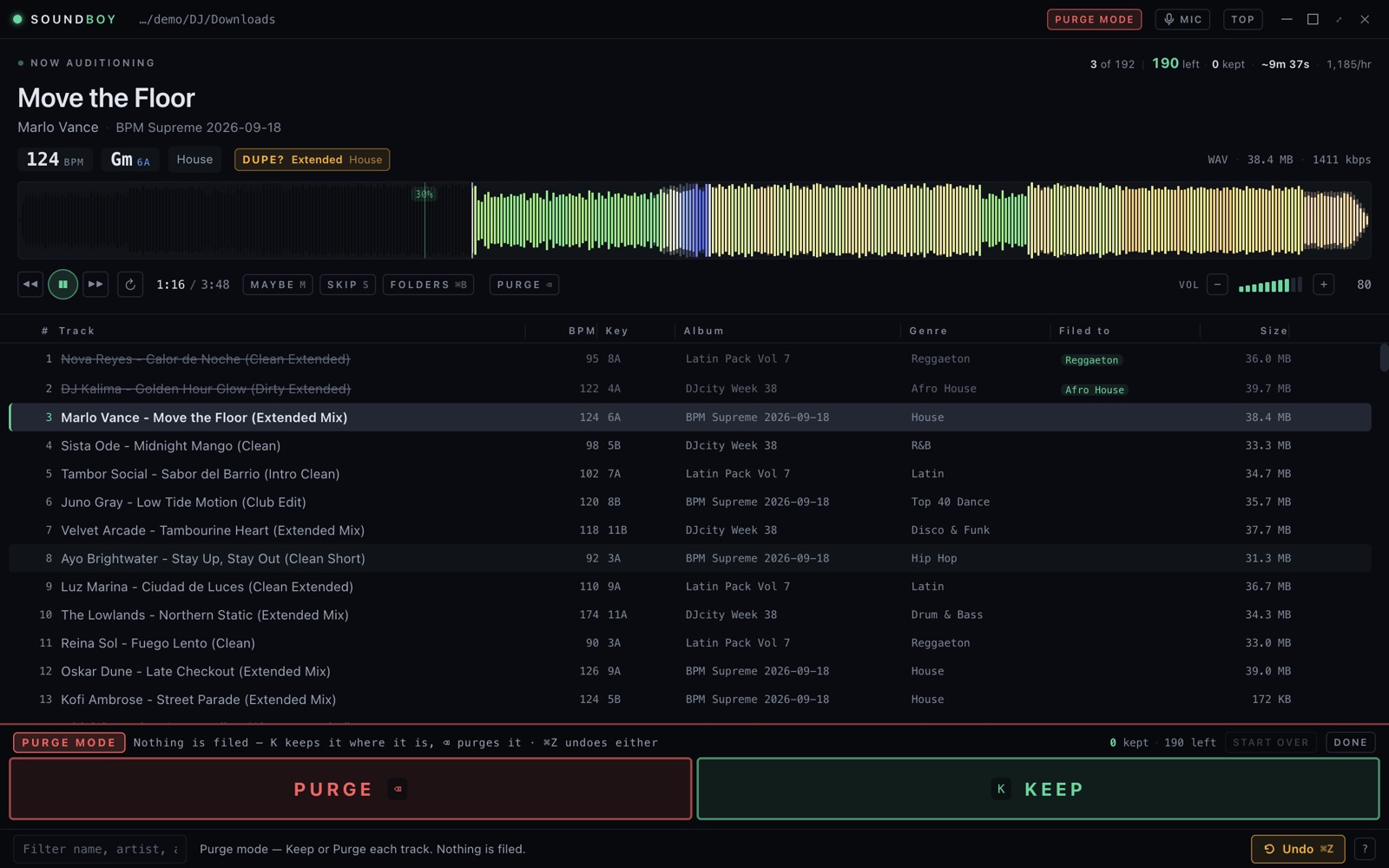
- ⇧P, or the Purge Mode switch at the top, turns it on for the folder you're in. It remembers the setting per folder.
- K keeps a track, ⌫ purges it, and ⌘Z undoes either.
- Kept tracks are remembered, so the next time you open the folder you only hear the ones you haven't decided on.
- Start over forgets what was kept, so every track plays again. It asks first. Purged tracks stay purged.
- Done takes you back to the normal keys.
On the phone, swipe the track right to keep it and left to purge it. Let go before the line and it springs back. See iPhone and iPad app.
↑ TopContinuous play
C turns it on. When a track plays to the end, the next one starts from the beginning. Nothing is decided for you: the finished track stays unfiled. Scrubbing to the end of a track doesn't count as it finishing. It's for listening through a crate hands-free, then filing the ones that stand out.
↑ TopVoice mode
Say where a track goes. It works on the Mac (V, or the Mic switch at the top), and in the iPhone and iPad app in both modes. The first time, macOS or iOS asks for the microphone and speech recognition. Speech is recognised by Apple, on the device where it can be, and Soundboy keeps nothing.
What to say
| Say | Does |
|---|---|
| “One” … “ten”, “number three”, “put it in three” | The key in that position on the page on screen. “Ten” or “zero” is the tenth key |
| “File Latin” | The folder with that name, whatever page it's on |
| “Trash it”, “bin it” | Soundboy Trash |
| “Maybe”, “that's a maybe” | The Maybe folder |
| “Skip”, “next”, “next one” | Skip |
| “Undo” | Put the last one back |
| “Play”, “pause” | Play or pause |
| “Forward”, “back”, “forward thirty”, “back thirty” | Jump 15 or 30 seconds |
| “Restart”, “from the top”, “halfway” | Jump to the start, or the middle |
| “Keep it”, “that's a keeper”, “purge that” | Keep or purge, in Purge mode only |
How it tells you from the music
- Short and alone. Five words at most, one command, and the rest only small words like “it”, “that”, “put” or “please”. “Trash it” works. “I'm gonna trash this whole playlist” doesn't.
- Over music it listens for a command with a pause on either side, so a lyric has to go quiet around the word before it can do anything.
- One track per command. A second command said right after the first is held back, so a stutter or a count-in can't file tracks you haven't heard. “Undo” always goes through.
- “Stop” isn't a command: it's in too many lyrics. Say “pause”.
- “Keep” only counts in Purge mode. Anywhere else it's just a word.
The line under the switch shows what it heard and what happened, like Heard “three” → filed to slot 3. Tap it on the phone to see the last twenty-five things it heard, near misses included, with the reason each did or didn't act.
Microphone, on the phone
Tap the voice line and choose which microphone it uses:
- AirPods when the music stays full quality: in Remote mode always, since the music plays on the Mac. In Cloud mode only AirPods that record in high quality, otherwise the iPhone mic.
- AirPods, even in call quality: hears you from anywhere. In Cloud mode, AirPods without high-quality recording play the music in call quality while voice mode is on.
- iPhone mic: never the AirPods.
Your DJ software
Settings ▸ Playlists ▸ Also file into DJ software playlists. Every track you file also goes into a playlist named after its folder, in each app you tick. The folders are still where your files really live, so this is a copy of your sorting. ⌘Z takes a track back out of all of them. It's off when sorting a Dropbox, because the playlists point at files on this computer.
| App | What you get |
|---|---|
| Serato | A Soundboy crate with one sub-crate per folder, written straight into Serato's own crates. Tracks you added to those crates yourself are kept. A track on an external drive goes into that drive's Serato folder, the only place Serato looks for it. |
| rekordbox | A collection XML in the export folder. In rekordbox, set Preferences ▸ Advanced ▸ Database ▸ Imported Library to that file once. Your folders then appear under rekordbox xml. |
| Traktor | A playlist file per folder. Drag it onto Playlists, or File ▸ Import Playlist. Importing again updates the playlist, doesn't duplicate it, and keeps your cue points. |
| Anything else | One .m3u8 per folder. Every DJ app imports these. |
The export folder is Music/Soundboy Playlists unless you change it.
The folder in the file
Settings ▸ Folders ▸ Write the folder into each track's tags puts the folder's name in each MP3's Grouping tag, so rekordbox, Serato and Traktor can show it. The audio and artwork are untouched, and undo puts the old tag back.
↑ TopPhone page, Stream Deck, MIDI
Your phone or iPad, in the browser
- On the computer: Settings ▸ Remotes ▸ turn on Sort from your phone. The first time, macOS asks whether to allow incoming connections: allow it.
- Scan the code with the phone's camera and open the link. The phone must be on the same Wi-Fi.
- That's it. The page has the waveform (tap to jump), transport, the ten keys with page switching, Maybe, Skip, Trash, Undo, Purge mode, Continuous, your pace, and every folder: search them, file into any of them, or hold one to put it on a key.
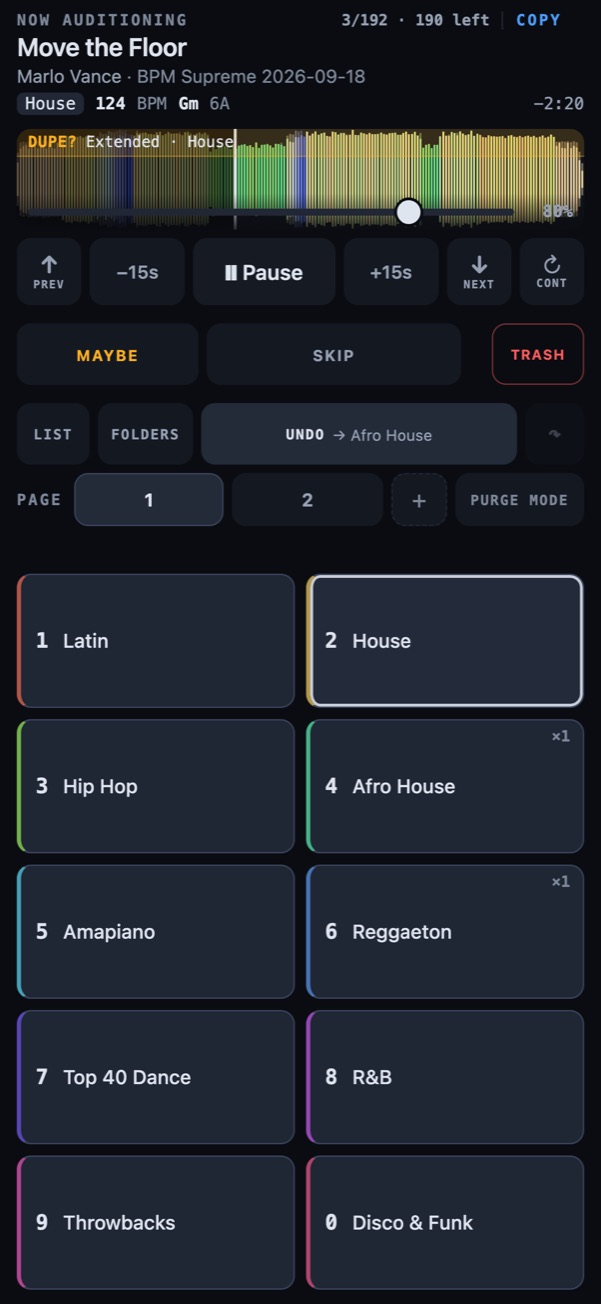
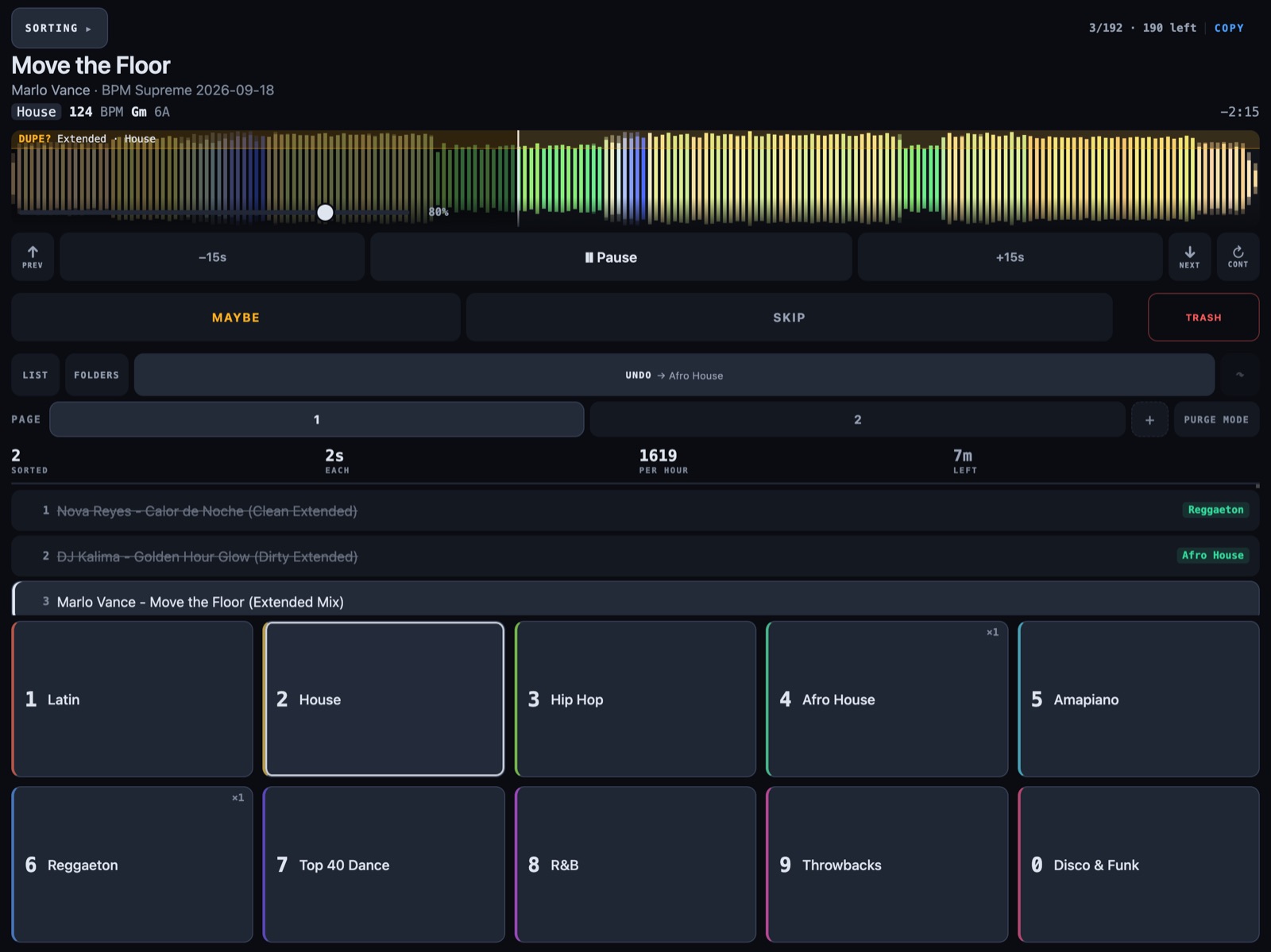
The link contains a pairing code. Anyone on your network with that link can file your tracks, so treat it like a password. Mint a new code in Settings ▸ Remotes disconnects every phone paired so far. On a network you don't trust, turn the remote off.
Away from home: put Tailscale on the computer and the phone, signed in to the same account. Open the same link with the computer's Tailscale name in place of its address, keeping the port and code. The computer has to be awake.
Stream Deck
Two ways. The Soundboy plugin talks to the same remote as the phone page (turn that on first). Its keys show the playing track, the real folder behind each key, your pace and copy/move mode, and they always file into the same folder whatever page you're on. Or use plain Hotkey actions sending the F13–F21 keys in Every key, with Work without focusing the window on.
MIDI
Settings ▸ Remotes ▸ Controller. Pick a command, press the pad, done. The same pads work in every profile. A small pad controller such as an Akai LPD8 makes a good filing console. A MIDI controller shared with your DJ software sends its notes to both, so a dedicated pad is simpler.
Apple Watch without the app
Settings ▸ Remotes ▸ Apple Watch lists a web address for each action. In the Shortcuts app, make a shortcut with Get Contents of URL for each one, then put them on a complication or the Action button. The Watch app does more, but this needs no beta.
↑ TopiPhone and iPad app
Private beta. The app is on TestFlight for invited testers. Email hello@soundboyselecta.com if you'd like to try it.
One app, two modes, chosen with the switch at the top.
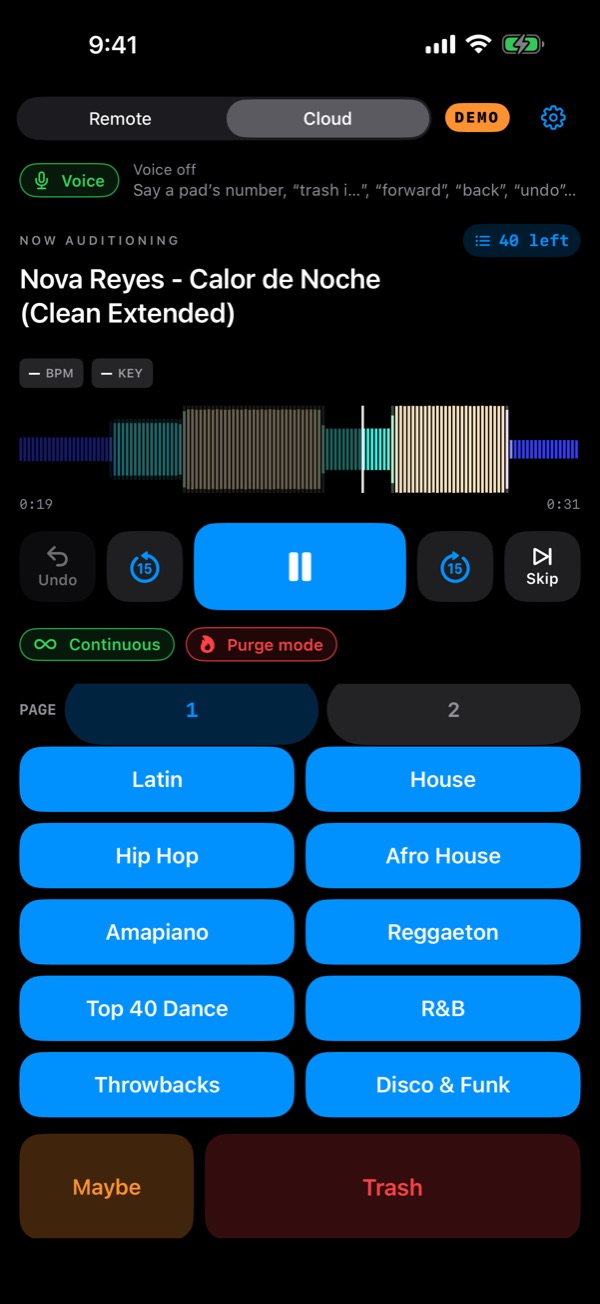
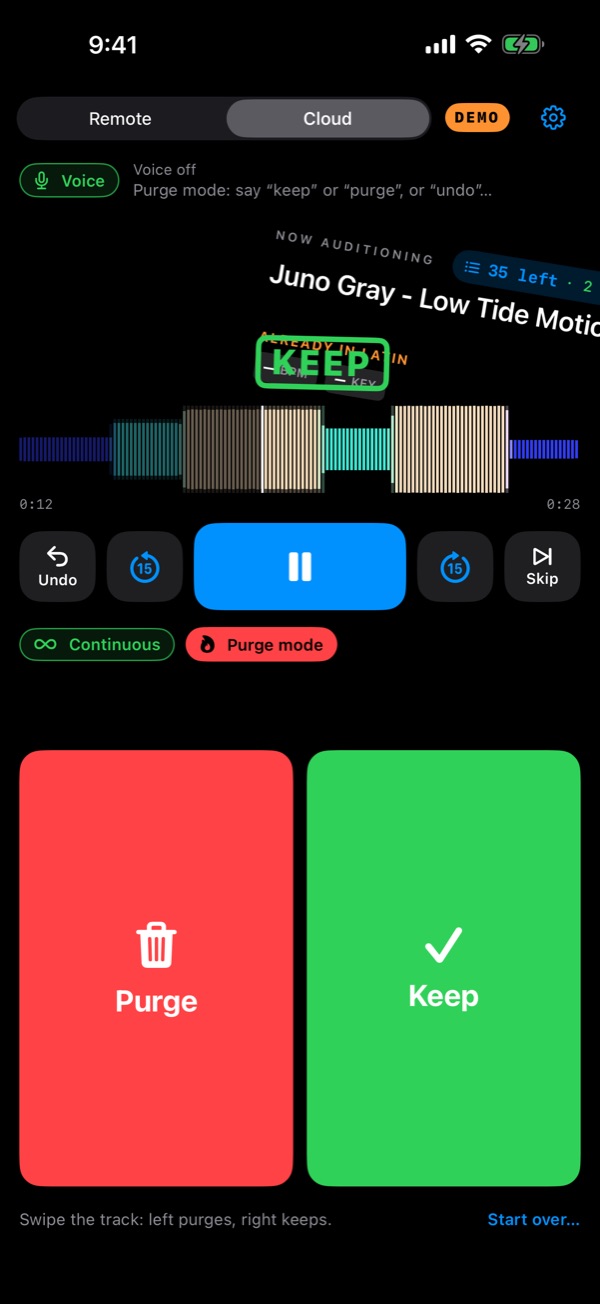
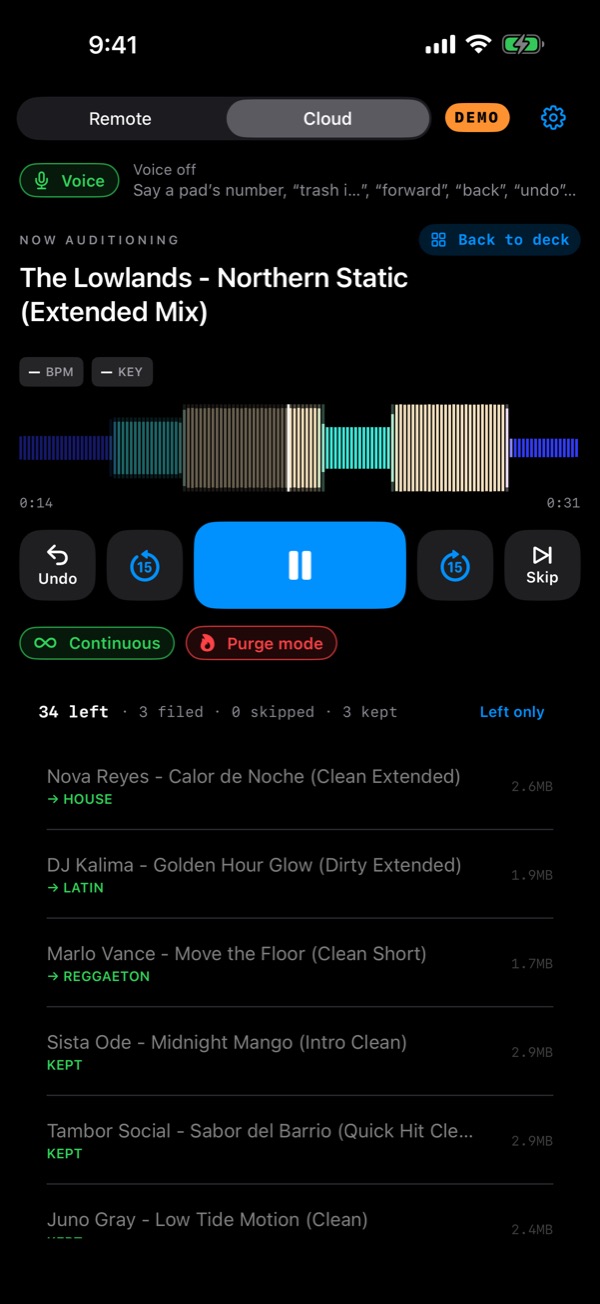
Shown in demo mode, whose made-up tracks have no BPM or key tags.
Remote mode
Controls the computer: the same page as the phone page, inside the app. A strip on top shows whether it can reach the computer and what's playing. If it says Can't reach the Mac, check that Soundboy is open with Sort from your phone on, and that the phone is on the same Wi-Fi, then tap Try again.
Cloud mode
Sorts a Dropbox from the phone. The computer can be asleep, or you may not have one at all. Filing is done by Dropbox on its own servers, so nothing downloads to move it. Only the track you're hearing is downloaded.
- Connect Dropbox. You sign in on Dropbox's own page, never in the app.
- Pick a crate: the folder to sort. Crates you sort often stay on a shelf, one tap away. Swipe one off the shelf to remove it; the folder stays in Dropbox.
- Set up the pads. Up to six pages of ten. Mirror the Mac's pages… copies the computer's keys in one go. Or Add pads…: search, pinned and recent folders, or make a new one. Tick several and they all become pads. Arrange pads lets you drag, rename, or move a pad to another page. A pad's name is what voice mode listens for.
- Start.
On the deck
- Transport: Undo, back 15, play/pause, forward 15, Skip. Tap or drag the waveform to jump.
- Pads file into their folder, and the page switcher is above them. Maybe and Trash sit below. A ringed pad is a suggestion: a copy is already there, or that genre usually goes there.
- Left · kept at the top opens the list of the crate. Left only hides what's done.
- Continuous and Purge mode switches sit under the transport. In Purge mode the pads become Keep and Purge, and you can swipe the track itself: right keeps, left purges. Start over… brings back what you kept.
- Already in that folder? A banner asks: Keep both, Replace it, Skip it or Later. A replaced copy goes to Dropbox's own deleted files, and undo brings it back.
- Exact copies of tracks you've already filed get one offer: Trash N or Not now.
The gear opens Setup: crates, pads, Maybe folder, Include subfolders, Purge mode for the current crate, Disconnect Dropbox and Report a problem….
iPad
The same app. On a wide screen the deck and the pads sit side by side, in the same order as on the phone.
↑ TopApple Watch
Private beta, installed with the iPhone app.
- Deck page: what's playing, how many are left, the waveform, play/pause, back and forward, Trash and Undo. In Purge mode, Keep and Purge.
- Digital Crown: the computer's volume, in Remote mode.
- Folders: every folder in one list, Maybe included. They file into the same folder whatever page the computer is showing.
- Mic: tap it and say one command, such as “three” or “trash it”. The same rules as voice mode apply, and it only listens after a tap.
- Cloud mode: when the phone is in Cloud mode, the watch controls the phone.
- Complication: how many tracks are left to sort, on the watch face.
When the watch can't reach the computer by itself, it goes through the phone.
↑ TopDropbox
Settings ▸ Storage ▸ Where the music lives: This Mac or Dropbox.
- This Mac sorts folders on the computer, including folders that happen to be inside a synced Dropbox folder.
- Dropbox talks to Dropbox directly, and the files never have to download. Watching for new tracks uses Dropbox's own change feed, and filing is done by Dropbox on its servers, so a big WAV files as fast as an MP3. A track downloads only when you play it.
Connect Dropbox… opens Dropbox's sign-in page in your browser, so Soundboy never sees your password. The sign-in is kept in the system keychain, and you can revoke it at dropbox.com under Connected apps.
The two setups are kept apart. Connecting Dropbox doesn't change your folders on the computer, and switching back finds everything as you left it.
What's different on Dropbox: folders are picked with Soundboy's own picker. Trash is a Soundboy Trash folder at the top of your Dropbox. Playlists and the Grouping tag are off. The exact-copies sweep only runs on the phone and on local folders. The phone page, Watch and Stream Deck work the same.
Settings
⌘, opens them. Changes save as you make them.
| Tab | What's there |
|---|---|
| Keys | The folder and name behind each key, page by page. The Maybe folder. What a number key does: copy or move. Profiles: add, duplicate, rename, delete (the last one stays). |
| Folders | The folder being sorted and Include sub-folders. Your library folders for the shelf. Write the folder into each track's tags. |
| Storage | This Mac or Dropbox, the Dropbox account, and what changes on Dropbox. |
| Playlists | Serato, rekordbox, Traktor and M3U, and the export folder. |
| Playback | Where tracks start, Skip the breakdown, how far the arrow keys jump, and Volume moves the whole Mac (on a Mac, the volume keys set the Mac's own output). |
| Remotes | Sort from your phone with its code, voice mode, Apple Watch shortcuts, MIDI controller, and Work without focusing the window. |
| Window | The welcome screen again, Always on top, and the skin: Deck or Nineties. |
| Updates | The version you have, and checking for a new one. |
| Licence | Your trial or licence, and where to paste a key. |
Settings are kept in ~/Library/Application Support/Soundboy/config.json (the Help menu can show you the file).
When something's wrong
- The phone can't reach the computer.
- Check four things: the computer is awake, Soundboy is open, Settings ▸ Remotes ▸ Sort from your phone is on, and the phone is on the same Wi-Fi. If you minted a new code, scan the new one. Some venue and hotel networks block devices from seeing each other. Use Tailscale there (see Phone page).
- A new download didn't show up.
- ⌘R rescans the folder and restarts the watch on it, which fixes a folder that was deleted and recreated, or swapped by a sync app. Check Include sub-folders if the track is inside a folder.
- “Can't preview this format.”
- The file is damaged or uses an unusual codec. It stays in the queue and can still be filed.
- I trashed the wrong track.
- ⌘Z. Or open
Soundboy Trashin your home folder (or the top of your Dropbox) and drag it back. - I filed into the wrong folder.
- ⌘Z puts it back in the download folder. The status line names the key you pressed, so you can see whether it was 4 or 3.
- A Stream Deck key does nothing.
- Check these in order. (1) The key is set up in the Elgato app as a Hotkey action, and you pressed the real key into its field, not typed “F13”. (2) System Settings ▸ Privacy & Security ▸ Accessibility allows Elgato Stream Deck. If it's already on, switch it off and on, then reopen the Stream Deck app. (3) Work without focusing the window is on. (4) Another app, such as Karabiner, BetterTouchTool or Keyboard Maestro, hasn't claimed the key; Soundboy lists any key it couldn't claim. Soundboy's MIDI learn never sees a Stream Deck, because a Stream Deck sends keystrokes, not MIDI.
- Voice mode doesn't hear me.
- Say the command on its own, with a pause either side. Tap the voice line to see what it heard and why it didn't act. On the phone, choose your AirPods under Microphone. If the line says permission is off, the Settings button beside it goes straight there.
- Windows says it protected my PC.
- The Windows beta isn't signed yet. Choose More info, then Run anyway, once.
Licence, updates, reports
The free month and your licence
Everything is on for a month from when you first open the app. After that it's $69 once, not a subscription, with free updates for the current major version. Your licence is a key you paste in Settings ▸ Licence. It's checked on your own computer, so it works offline and a venue with no signal can't lock you out.
If the month runs out in the middle of a session, you keep working. It's noticed at the next launch. If you do nothing, filing stops and the app is still yours to open.
Updates
New versions download quietly and install when you quit. Settings ▸ Updates shows your version.
Reporting a problem
Settings ▸ Report a problem… (at the bottom) saves a plain text report to your Desktop and shows it to you, then opens an email to us. Read the report, drag it into the email, say what happened, and send. On the phone it's in Setup, and opens the share sheet. Nothing is sent without you, and no crash data or analytics are ever collected.
Anything else: hello@soundboyselecta.com.
↑ Top